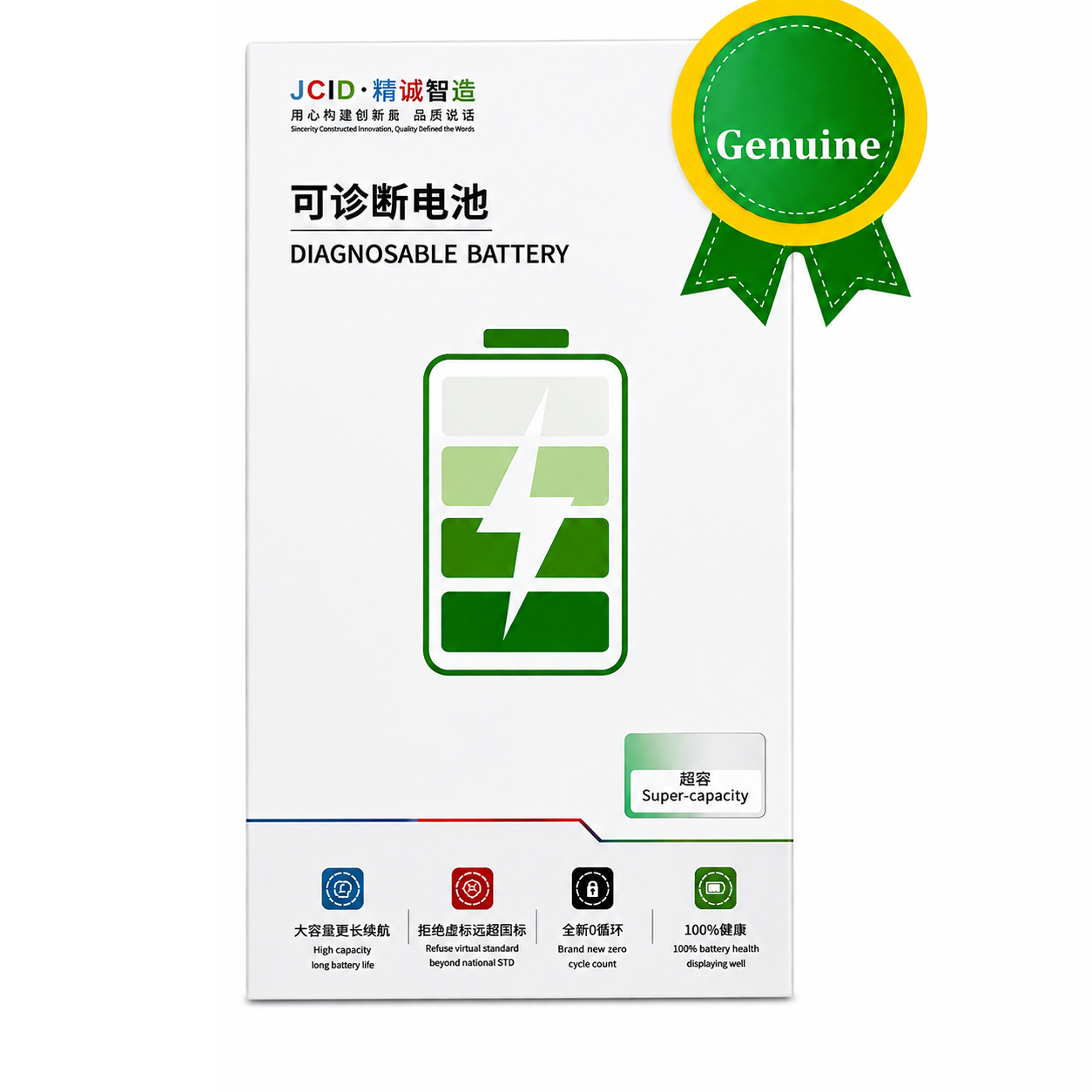
Compatible with Apple
iPhone 12 Mini A2176 A2398 A2400 A2399 (2020)
Installation
Install the battery and connect it to the motherboard. Connect the device to Wi-Fi, then go to Settings → General → Parts & Service History and tap “Reboot and Finish Repair”. Restart the device after setup. Battery Health will display 100%.
Installation
Install the battery and connect it to the motherboard. Connect to Wi-Fi, then go to Settings → General → Parts & Service History and tap “Reboot and Finish Repair”. Restart the device after setup. Battery Health will display 100%.
Upgrade your iPhone 12 / 12 Pro with the JCID Self-Diagnosable 2nd Gen Increased Capacity Battery. Designed for reliable performance, longer battery life, and accurate battery health detection after professional installation.
Key Features
• Self-Diagnosable Technology
• Increased Capacity
• 100% Battery Health Display
• Zero Charging Cycles
• Fast Charging Support
• Stable & Reliable Performance
• Built-in Safety Protection
• Professional Installation Recommended
Installation
Install the battery and connect it to the motherboard. Connect to Wi-Fi, then go to Settings → General → Parts & Service History and tap “Reboot and Finish Repair”. Restart the device after setup. Battery Health will display 100%.
iPhone 13 Pro JCID Super Capacity Battery Model: A2653 Capacity: 3300mAh Voltage: 3.87V Power: 12.89Whr Charging Cycles: 0
Installation Install the battery and connect it to the motherboard. Connect to Wi-Fi, then go to Settings → General → Parts & Service History and tap “Reboot and Finish Repair”. Restart the device after setup. Battery Health will display 100%.
iPhone 13 Pro Max JCID Super Capacity Battery Model: A2653 Capacity: 4790mAh Voltage: 3.85V Power: 18.44Whr Charging Cycles: 0
Installation Install the battery and connect it to the motherboard. Connect to Wi-Fi, then go to Settings → General → Parts & Service History and tap “Reboot and Finish Repair”. Restart the device after setup. Battery Health will display 100%.
Installation Install the battery and connect it to the motherboard. Connect to Wi-Fi, then go to Settings → General → Parts & Service History and tap “Reboot and Finish Repair”. Restart the device after setup. Battery Health will display 100%.
Installation
Install the battery and connect it to the motherboard. Connect to Wi-Fi, then go to Settings → General → Parts & Service History and tap “Reboot and Finish Repair”. Restart the device after setup. Battery Health will display 100%.
Installation
Install the battery and connect it to the motherboard. Connect to Wi-Fi, then go to Settings → General → Parts & Service History and tap “Reboot and Finish Repair”. Restart the device after setup. Battery Health will display 100%.
Installation
Install the battery and connect it to the motherboard. Connect to Wi-Fi, then go to Settings → General → Parts & Service History and tap “Reboot and Finish Repair”. Restart the device after setup. Battery Health will display 100%.
Installation
Install the battery and connect it to the motherboard. Connect to Wi-Fi, then go to Settings → General → Parts & Service History and tap “Reboot and Finish Repair”. Restart the device after setup. Battery Health will display 100%.
Installation
Install the battery and connect it to the motherboard. Connect to Wi-Fi, then go to Settings → General → Parts & Service History and tap “Reboot and Finish Repair”. Restart the device after setup. Battery Health will display 100%.